
BROWSER SETUP
Video downloader for Chrome
videobunny is a video downloader extension for desktop Chrome. Install it from the Chrome Web Store, play a supported video, then open the extension to download it to your device.
Install from the official listing
Open the videobunny Chrome Web Store listing. Review the extension details and permissions, then choose Add to Chrome. Pin videobunny in the extensions menu so it is easy to open beside a video.
Save your first video
- Open a page with a video you are allowed to save and start playback.
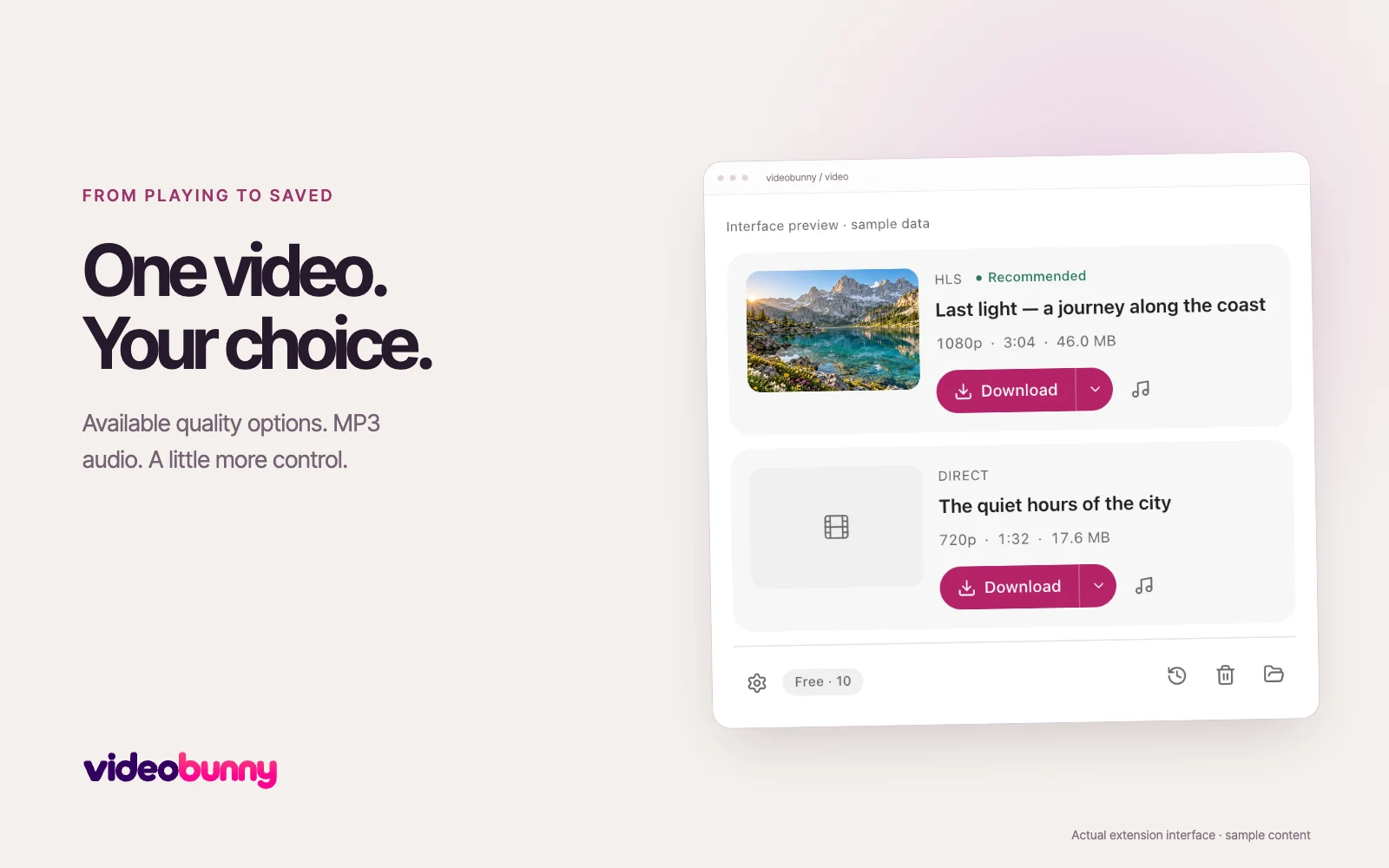
- Open videobunny. Choose the matching video card and use the arrow beside Download if you want a different available quality.
- Choose Download and keep the source tab open until saving finishes. Open Downloads to play the saved file.
If a video does not appear
Refresh the source page after installing or updating the extension, then play the video again. Check that videobunny has site access for that page. If the site uses an unsupported or protected source, the extension cannot turn it into a downloadable video.
What the permissions do
Website access finds media sources. Download permission saves your files. Local storage keeps your settings and library. Processing happens on your device; an optional account connection handles membership and download allowance information.
Browser documentation: Google: install and manage extensions