
BROWSER SETUP
Video downloader for Opera
Desktop Opera can use the videobunny Chrome Web Store package. Open the official listing in Opera, follow the browser’s installation prompts, then play a supported video and open videobunny.
Install in desktop Opera
- Open the official videobunny Chrome Web Store listing in Opera.
- Follow the Add to Opera or installation prompts shown by your browser and review the requested permissions.
- Open Opera’s extensions page to confirm videobunny is enabled. Pin it for quick access.
Check site access when a card is missing
Open Opera’s extension details for videobunny and check the site access setting. After changing access or installing an update, refresh the video page and start playback. Browser privacy controls and website restrictions can affect media detection.
Use the same download workflow
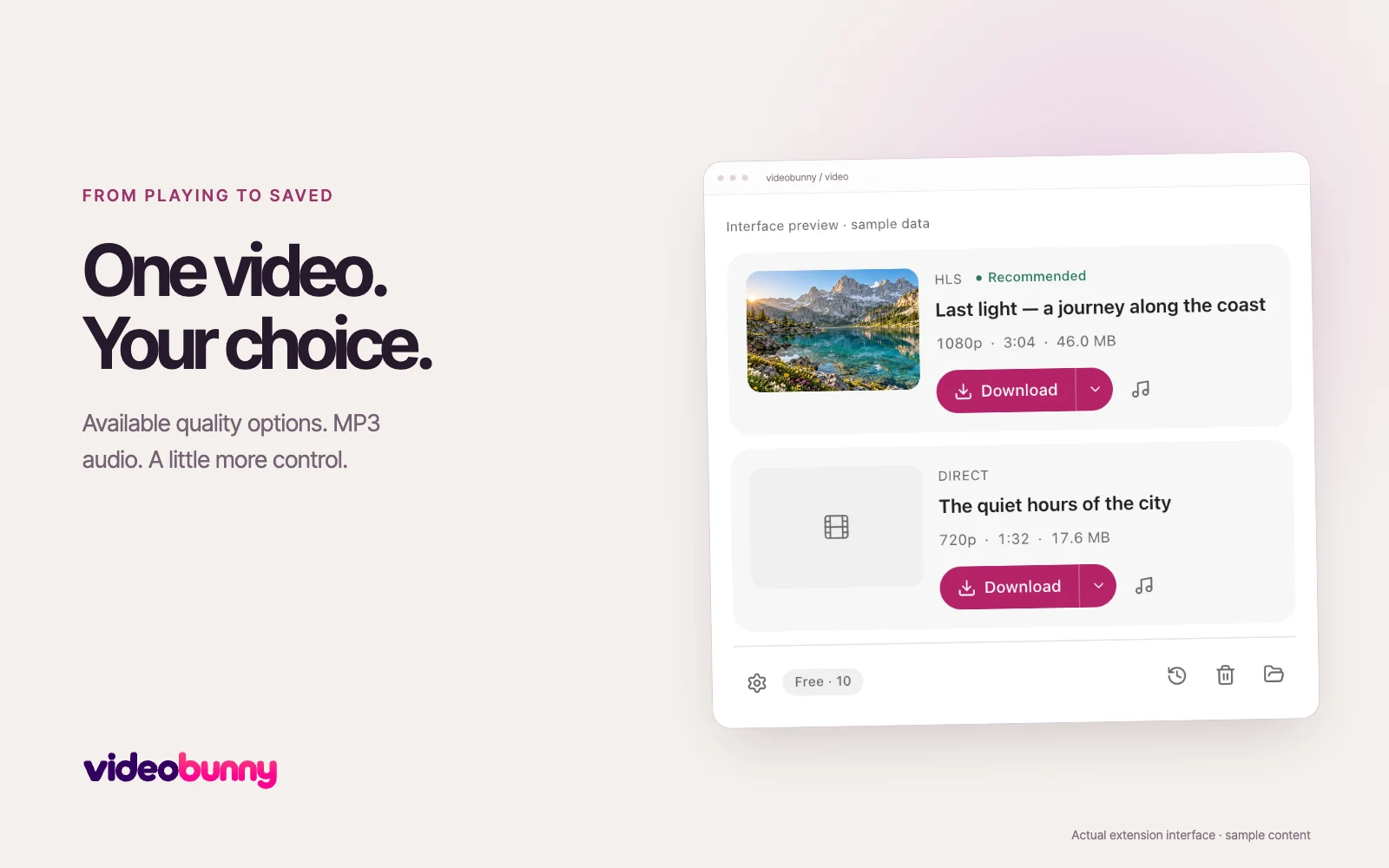
Choose Download for video or the music button for MP3. Use the quality arrow for available resolutions. Completed downloads appear in the local library, where you can play them, edit display titles and choose cover frames.
Your Opera library is separate
Chrome and Opera installations keep separate local libraries. Connecting the same account can share membership and the advanced download allowance, but it does not copy media files or library records between browsers.
Browser documentation: Opera: installing Chrome extensions