
 English
 العربية
 简体中文
 Français
 Deutsch
 日本語
 Português (Brasil)
 Русский
 Español
 Türkçe
Choose what you keep.
Save supported video files, HLS/M3U8 and DASH streams. Choose from the source’s available qualities. Auto targets up to 1080p.
How stream downloads workVIDEO DOWNLOADER FOR YOUR BROWSER
Download supported videos and streams. Save audio as MP3. Keep everything organized in a local library, with playback and covers you choose.
For desktop Chrome, Edge, Opera and Firefox. Check browser compatibility
A QUICK LOOK
Video downloads, MP3 audio and a library of your own. Get to know videobunny in 35 seconds.
35 seconds · Plays on YouTubeWatch on YouTube
FROM FOUND TO SAVED
A useful clip. A creative reference. Give the videos you save a place of their own.
Save supported video files, HLS/M3U8 and DASH streams. Choose from the source’s available qualities. Auto targets up to 1080p.
How stream downloads workUse the music button beside Download to convert a supported audio track to MP3. Conversion happens on your device.
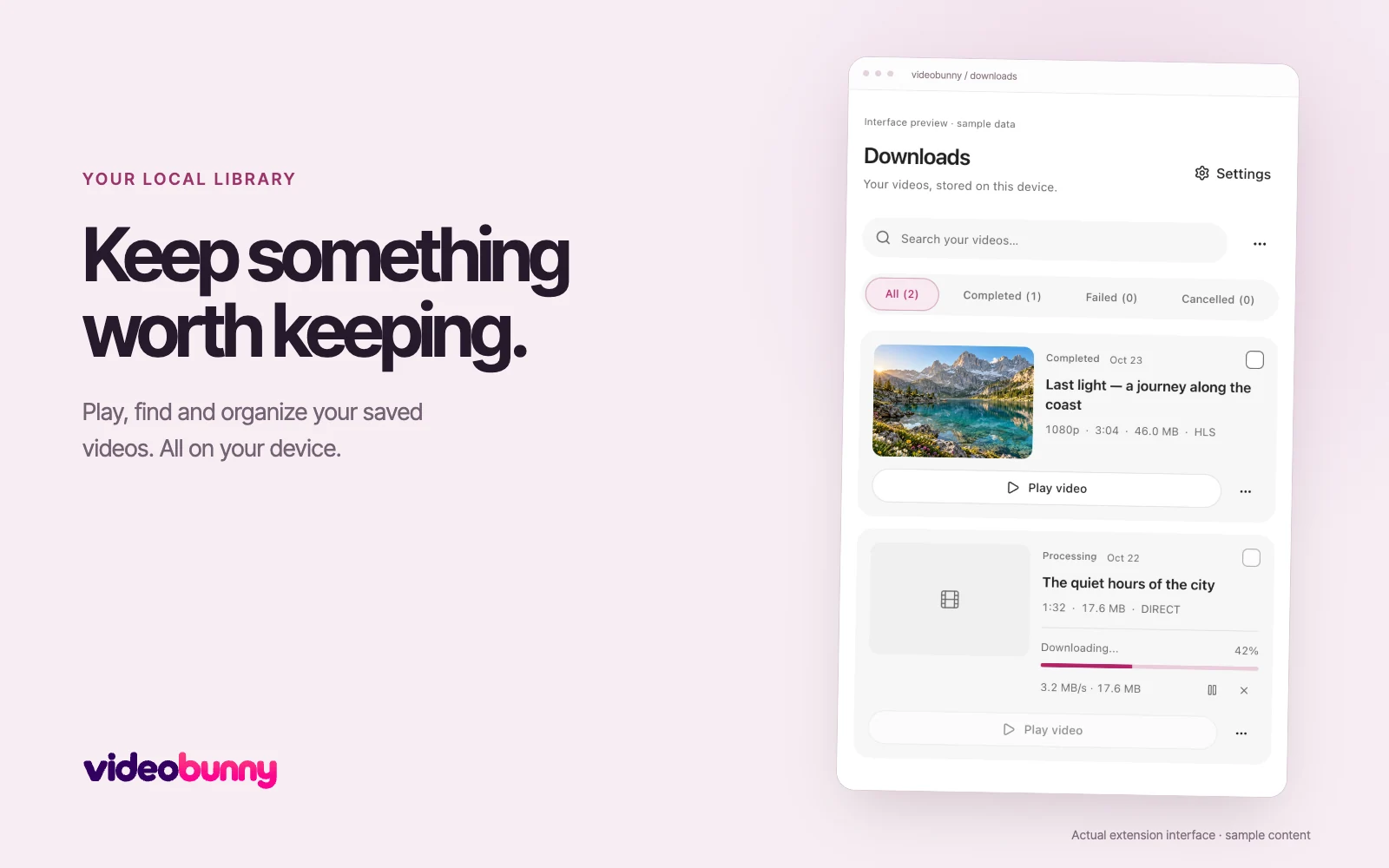
Save audio as MP3Search your downloads, play completed files and return to an original page. Edit display titles and pick a frame for each video’s cover.
Explore the local library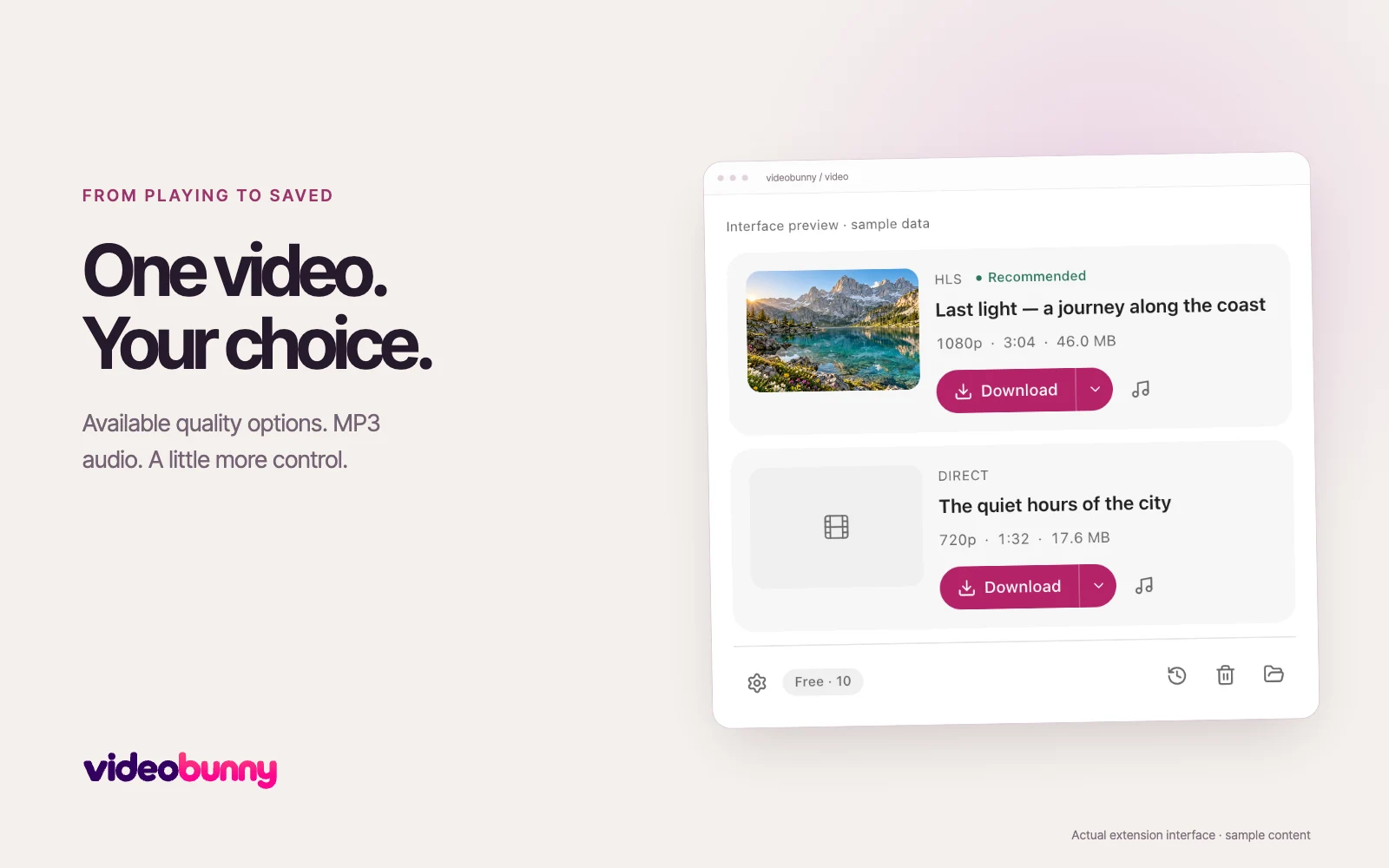
MAKE IT YOURS
Choose a cover from the saved video and add a display title that makes sense to you.
Meet your library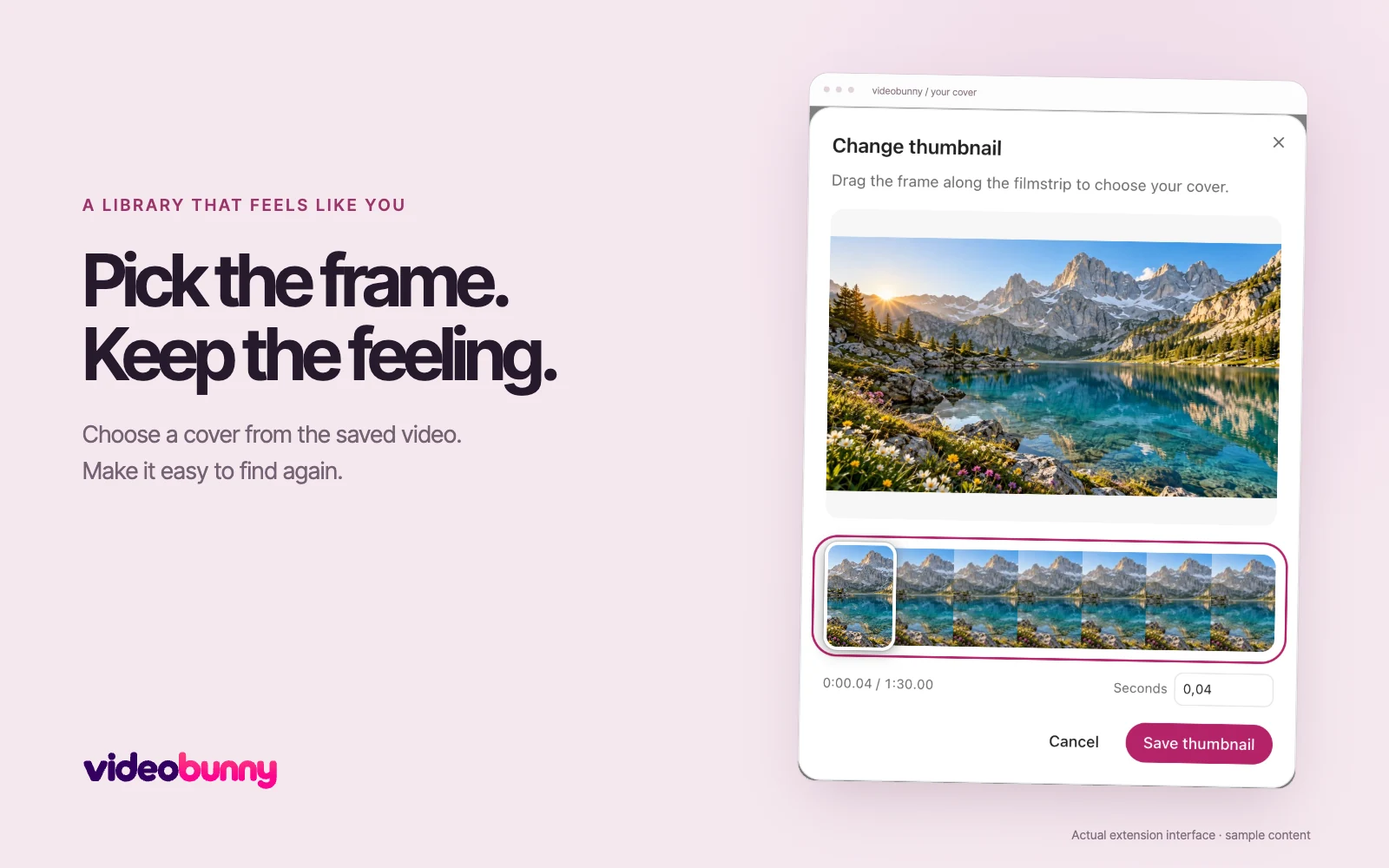
THREE SMALL STEPS
Open the source page and start playback so videobunny can find supported media.
Open the extension. Pick a video, select an available quality, or choose the music button for MP3.
Open Downloads to play, search and organize completed files. Keep the source tab open until saving finishes.
YouTube downloads and DRM-protected media are not supported. Website and format compatibility can vary. Only download content you own or have permission to save.
ON YOUR DEVICE
Media processing happens locally. Video files and library content stay on your device.
No. You can download videos and MP3 audio without an account. Your videos and library remain on your device.
Read the Privacy policyA LITTLE HELP
videobunny is a video downloader extension for desktop Chrome. Install it from the Chrome Web Store, play a supported video, then open the extension to download it to your device.
Read guide BROWSER SETUPDesktop Opera can use the videobunny Chrome Web Store package. Open the official listing in Opera, follow the browser’s installation prompts, then play a supported video and open videobunny.
Read guide VIDEO FORMATSvideobunny can save supported on-demand HLS streams from a video page. M3U8 is the playlist format that points to video segments. The extension reads a valid source and processes its segments locally into a saved media file.
Read guideInstall videobunny from Chrome Web Store for Chrome and Opera, Microsoft Edge Add-ons for Edge, or Firefox Add-ons for Firefox. Media support can vary by browser and website.
Yes. Freemium includes all features and unlimited supported video downloads and MP3 conversions. No account is needed.
Use the music button beside Download. Its tooltip is Download Audio. videobunny converts a supported audio track locally to MP3. A readable audio track and browser decoding support are required.
No. You can download videos and MP3 audio without an account. Your videos and library remain on your device.
No. The Chrome Web Store version does not support YouTube downloads. DRM-protected media is also not supported. Premium does not remove these limitations.
videobunny can detect a video when the player provides a supported media source. Start playback and open the extension to check what is available. Save only content you own or have permission to download.
KEEP SOMETHING GOOD
Freemium. Unlimited supported downloads, no account needed.
Explore Freemium