
 English
 العربية
 简体中文
 Français
 Deutsch
 日本語
 Português (Brasil)
 Русский
 Español
 Türkçe
BROWSER SETUP
Video downloader for Microsoft Edge
videobunny is a video downloader extension for desktop Microsoft Edge. Install it from Microsoft Edge Add-ons, play a supported video, then open videobunny to choose the quality and save the video or MP3 audio to your device.
Install from Microsoft Edge Add-ons
- Open the official videobunny listing in Microsoft Edge Add-ons using the installation button on this page.
- Select Get, review the requested permissions and confirm Add extension. Follow the equivalent prompts if your browser uses another interface language.
- Open Edge’s Extensions menu and make videobunny visible in the toolbar. Refresh any video page that was open before installation.
Download a video in Edge
- Open a video page you have permission to download from and start playback. This lets the website load its media source.
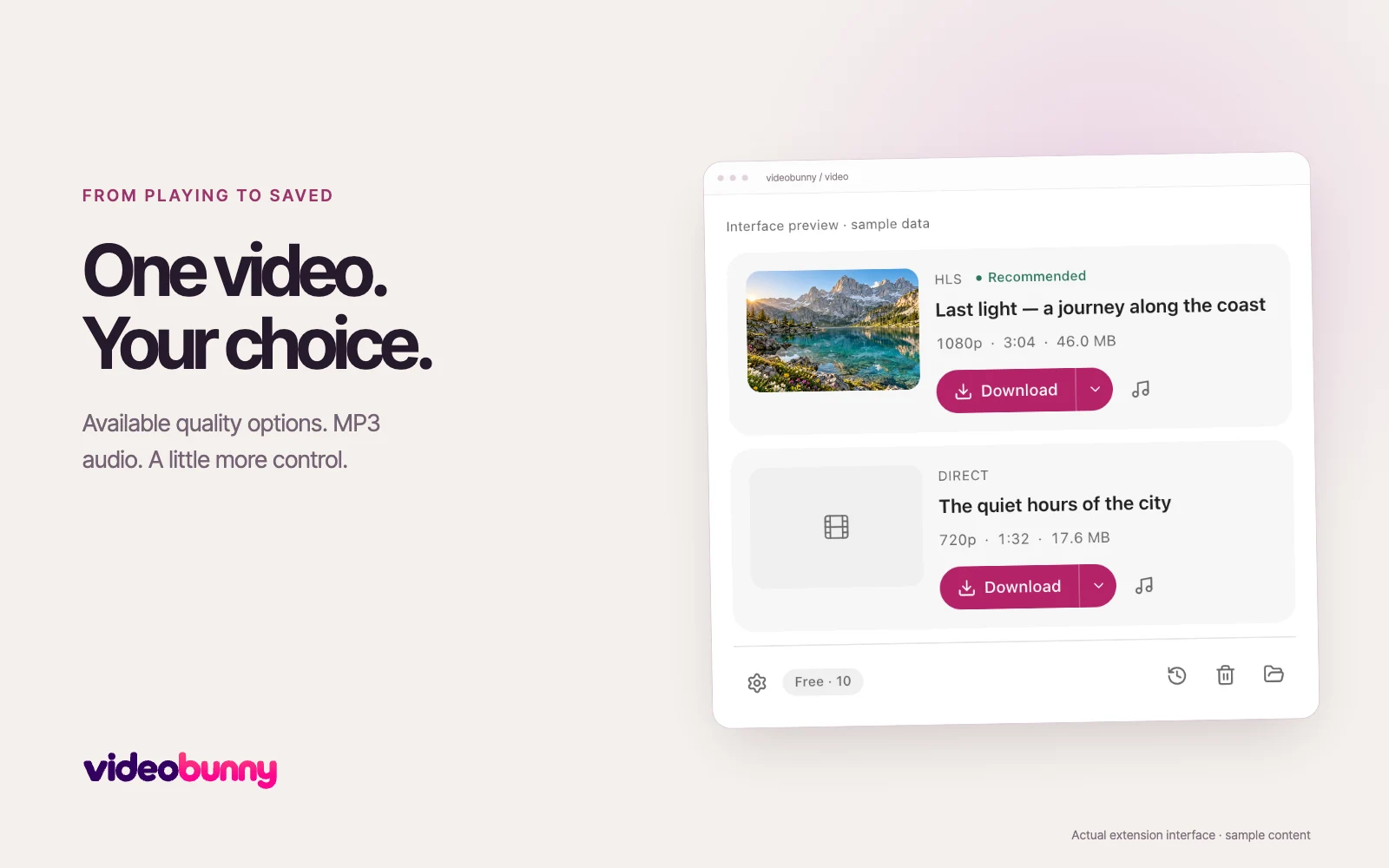
- Open videobunny from the toolbar and select the matching video card. Use the arrow beside Download to choose an available quality; Auto targets up to 1080p.
- Select Download and keep the source tab open until saving finishes. Open the videobunny Downloads page to play the saved video or return to its original page.
Direct files, HLS and DASH streams
A direct source points to a video file. HLS/M3U8 and DASH sources describe media segments and may provide separate video and audio tracks. videobunny processes supported on-demand sources locally. Available quality options come from the website; a lower-resolution source cannot gain detail through downloading.
Save MP3 audio from a supported video
Select the music button beside Download. Its tooltip is Download Audio. videobunny reads a supported audio track and converts it to MP3 on your device. Audio extraction requires a readable audio track and browser decoding support.
If Edge does not show the video
Access to a website does not guarantee a downloadable source. The website can restrict media access, use an unsupported format or provide DRM-protected playback. Organization-managed browsers can also restrict extension installation and site access.
- Open Edge’s Extensions menu, select Manage extensions and check that videobunny is enabled.
- Open Details for videobunny and check Site access. Allow access to the video’s website if you want videobunny to detect its media requests.
- Refresh the video page, start playback again and reopen videobunny. If a download fails, reopen the original page and retry with a fresh media source.
Your Edge library stays on your device
Completed files are saved to your configured download location. videobunny also keeps library records and a playback copy in this browser installation. You can play saved videos, edit display titles and choose cover frames. Edge, Chrome and Opera installations keep separate local libraries; switching browsers does not copy your files or history.
Common questions
Do I need Chrome Web Store to install videobunny in Edge?
No. Use the official videobunny listing in Microsoft Edge Add-ons. You do not need to enable extensions from other stores for this installation.
Can I download HLS and DASH videos in Microsoft Edge?
Yes, videobunny supports compatible on-demand HLS/M3U8 and DASH sources in desktop Edge. Start the video first, then open the extension. Availability depends on the website, media format and your access to the source.
Can I choose the download quality in Edge?
Use the arrow beside Download to choose from the source’s available qualities. Auto targets up to 1080p. The video card shows the selected quality; sources with a single quality cannot provide additional options.
Does my Chrome video library appear automatically in Edge?
No. Each browser installation keeps its own local library and playback copies. Installing videobunny in Edge does not transfer downloads or history from Chrome or Opera.
Browser documentation: Microsoft: install and manage Edge extensions