
 English
 العربية
 简体中文
 Français
 Deutsch
 日本語
 Português (Brasil)
 Русский
 Español
 Türkçe
BROWSER SETUP
Video downloader for Firefox
videobunny is a Firefox video downloader extension for desktop Firefox. Install it from Mozilla Add-ons, play a supported video, then open the toolbar extension and select its matching source to save it on your device.
Install videobunny from Firefox Add-ons
Open the official videobunny listing on Firefox Add-ons, select Add to Firefox and review the requested permissions. Pin the extension to the Firefox toolbar. Refresh video pages that were already open before installation or an update.
Download a supported video in Firefox
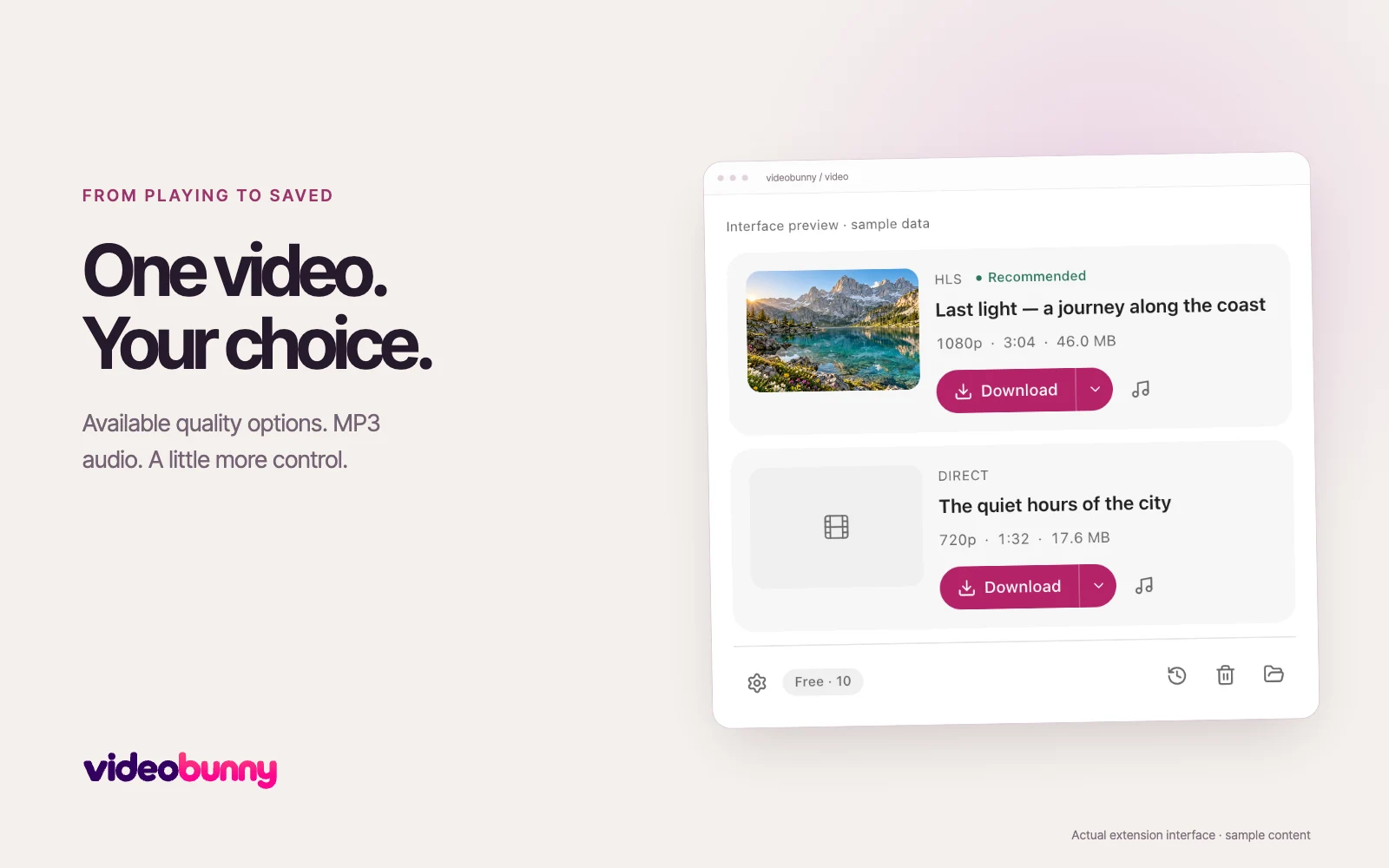
Open the exact video page and start playback. Open videobunny from the toolbar, select the card that matches the playing video, choose an available quality from the arrow beside Download, and select Download. Keep the source tab open until saving finishes.
Choose quality or save MP3 audio
The quality menu lists options provided by the source. Auto targets up to 1080p when available. Use Download Audio to convert a readable, supported audio track to MP3 locally in Firefox. videobunny cannot create a higher-resolution source or restore audio that the page did not load.
Troubleshoot a missing video in Firefox
Confirm videobunny is enabled and Firefox allows site access for the video page. Refresh the exact page, start playback and reopen the extension. A visible player does not guarantee a supported download source; unsupported formats, DRM and website access restrictions can prevent detection or saving.
Your Firefox downloads stay in this browser
Completed files go to Firefox’s configured download location. The videobunny library and playback copies stay in this Firefox installation. Other browsers keep separate libraries and do not copy these files or records automatically.
Common questions
Where can I install videobunny for Firefox?
Install the desktop extension from the official videobunny listing on Firefox Add-ons. The Add to Firefox button on this page opens that listing.
Can videobunny download every video in Firefox?
No. The website must expose a supported source, and your account and region must have access to it. YouTube downloads and DRM-protected media are not supported.
Can I choose quality and save MP3 audio in Firefox?
Yes. Choose a quality listed by the source from the arrow beside Download. Select Download Audio when videobunny detects a readable, supported audio track.
Browser documentation: Mozilla: find and install Firefox add-ons